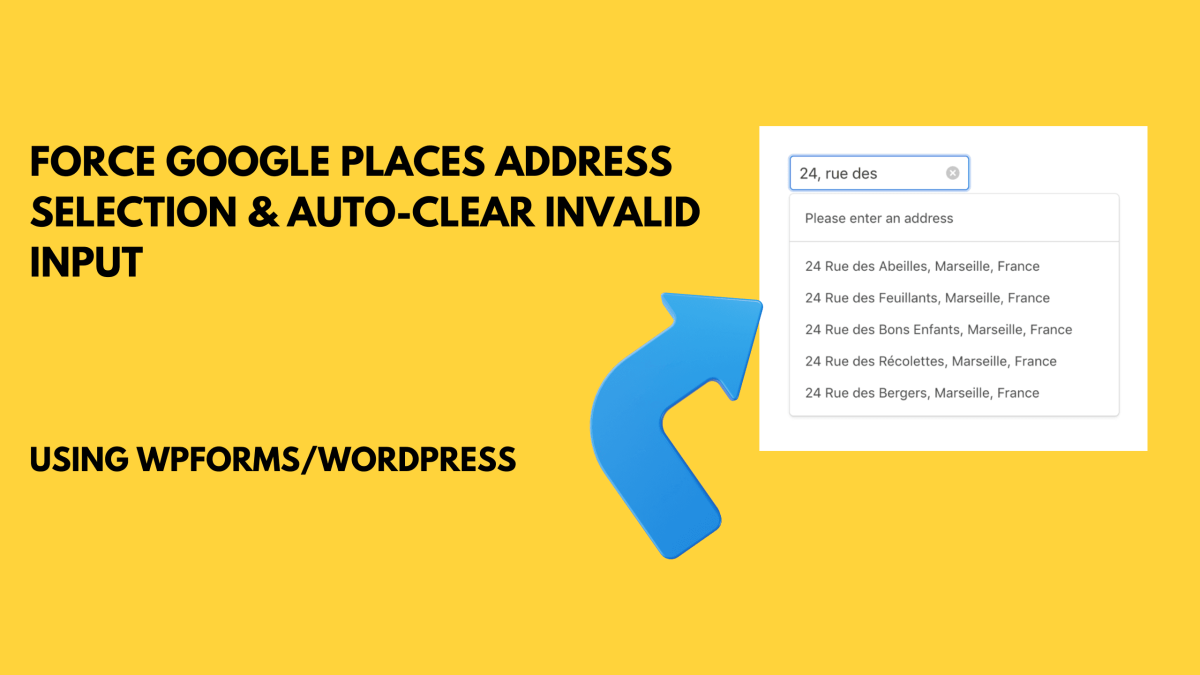
Accurate location data is critical for logistics, service scheduling, and database integrity. Standard address autocomplete features in WordPress forms often allow users to bypass suggestions, resulting in unverified manual entries. This guide detailed a technical solution to integrate the Google Places API with WPForms to ensure users select a verified address. By using a custom JavaScript snippet, the form will automatically clear any input that does not originate from the official API dropdown.
The Problem: Unverified Manual Input
While WPForms offers Google Places integration, it does not natively restrict the field to API-only selections. Users can type partial or incorrect addresses and submit the form, leading to:
- Invalid Geocoding: Shipping or mapping software failing due to non-standard formatting.
- Data Cleaning Costs: Manual labor required to verify and fix addresses post-submission.
- Operational Failures: Incorrect service delivery locations.
This workflow eliminates these risks by mandating a selection from the Google database.
Technical Solution Overview
The implementation relies on a listener script that monitors the interaction between the user and the Google Places Autocomplete library.
Key Logic:
- Selection Tracking: The script tracks whether a “place_changed” event has been triggered by the Google API.
- Validation Check: Upon the user leaving the input field (blur event), the script verifies the selection status.
- Auto-Clear Trigger: If the input value does not match a verified selection, the field is instantly cleared.
- User Correction: The empty field forces the user to re-engage with the autocomplete suggestions to proceed.
Implementation Steps
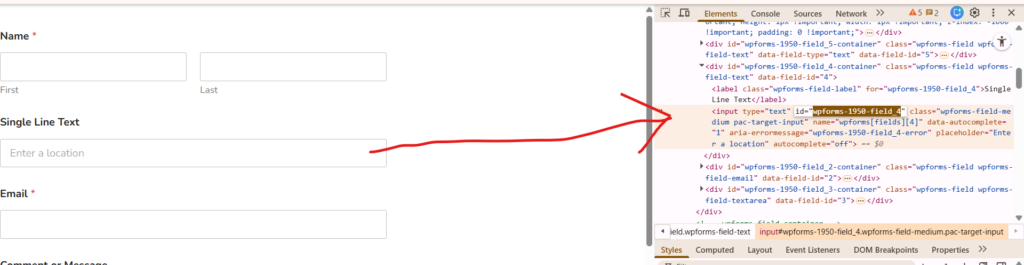
1. Locate the WPForms Field ID
Every input field in WPForms has a unique ID. You must identify the specific ID for your address field to target it with the script. Right click on the field that you want to target and copy the field ID as shown in the photo.
2. Install WPCode
For a secure implementation that survives theme updates, use the WPCode plugin.
- Create a new Snippet.
- Select JavaScript as the code type.
- Set the insertion location to the Site Footer.
3. Apply the Custom Code
Paste your custom JavaScript into the snippet editor. You only need to replace the field ID in the code with the specific Field ID identified in Step 1. This ensures the script targets the correct form element without affecting other site inputs. Do NOT remove the # sign before the ID or the code won’t work as intended.
// Just add this single script
jQuery(document).ready(function($) {
    $('#wpforms-1764-field_2').on('blur', function() {
        var value = $(this).val().trim();

        // If field has text but doesn't look like a real address
        if (value && !value.includes(',') && !/\d/.test(value)) {
            $(this).val(''); // Silently clear it
        }
    });
});
4. API Configuration
Ensure your Google Cloud Console project has the following APIs enabled and restricted to your domain:
- Places API
- Maps JavaScript API
Use Cases for Strict Validation
- Delivery Services: Ensures every destination exists in the Google Maps database.
- Service Area Business: Validates that the customer is within a serviceable region.
- E-commerce: Reduces shipping errors by standardizing address formats (City, State, Zip) via the API.
Professional Web Development Services
We provide technical WordPress solutions, and performance optimization for business websites. If you require advanced form logic or custom development, contact us for a consultation.
Portfolio: Visit full portfolio here
Inquiries: admin@adalike.com